Archive your database
Note: If you are replacing your database with a blank new database, skip this topic and continue with Copy your database. The steps below are preparation for updating the current database.
Warning: Before beginning, verify that all FIREHOUSE Software users are logged out, and that FIREHOUSE Software is not running.
-
Choose Start → Programs → FIREHOUSE Software → FIREHOUSE Software Database Archiver.
The Login Required - FIREHOUSE Software dialog box appears.
-
(If the path in Database is not to your live database) Click the lookup
 button to the right of Database and use the Select Directory dialog box to navigate to the directory where your department's live database is located.
 -
Enter the administrative user name and password for FH in the Login Required - FIREHOUSE Software dialog box, and then click OK.
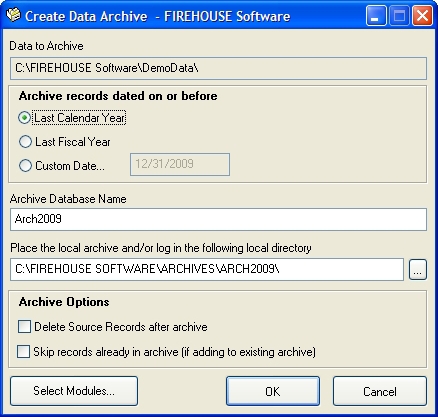
The Create Data Archive - FIREHOUSE Software dialog box appears.
- Under Archive records dated on or before, select Custom Date, and then enter the current date in the field.
- In Archive Database Name, type a name for the archive.
-
In Place the local archive and/or log in the following local directory, verify that the path is correct.
Note: If the path is incorrect, you can either click in the path field and type the correct path, or you can click the lookup
button to the right of the field and navigate to the correct location as you did in step 2. -
Under Archive Options, select Delete Source Records after archive.
-
Click Select Modules.
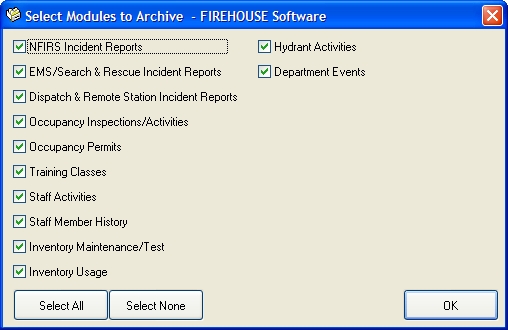
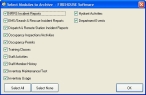
The Select Modules to Archive - FIREHOUSE Software dialog box appears.
-
Click Select None to clear any existing selections.
-
Select the options corresponding to any modules you want to archive, and then click OK.
-
In the Create Data Archive - FIREHOUSE Software dialog box, click OK to start the archiving process.
Progress updates and a series of information dialog boxes appear on your screen. This process may take some time if you have many records or a large database.
Note: If error messages are shown during this process, contact FH® technical support.
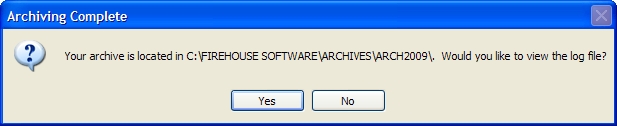
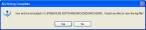
The Archiving Complete dialog appears.
-
Click Yes.
A log file appears.
- Check the log file for errors and warnings.
-
Choose File → Exit to close the log file.
The Create Data Archive dialog box closes when the log file closes.
- Verify that the modules you selected are deleted from your live database.
- Create another backup of the database, as you did earlier.
- Continue with Download the .FHz files you need.