Include additional columns in the import
For some CAD systems, you can import additional columns included in the data file the CAD system sends to FH CAD Monitor, and then map these columns to fields in FIREHOUSE Software.
-
(If you selected Run as a Service during installation) Stop the
Information on stopping the
-
At the bottom of the FIREHOUSE Software CAD Monitor window, click Options.
The FIREHOUSE Software CAD Monitor Options dialog box appears, displaying the General tab.
-
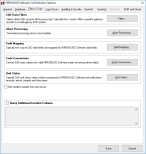
Click the Filters & Data tab.
Note: The Unit Status and Query Additional Incident Columns sections do not appear on the tab for all CAD systems.
-
Near the bottom of the tab, select or clear Query Additional Incident Columns, to indicate whether or not you want additional columns included in the data file the CAD system sends to FH CAD Monitor.
You can then use these additional columns when mapping data fields from FH CAD Monitor to FIREHOUSE Software.
If you select the option, the text box below the field activates.
-
(If you selected Query Additional Incident Columns) In the text box, type the SQL Server code needed to query for the additional columns.
Warning: The column names are very specific to individual CAD system tables and columns. Contact FIREHOUSE Software support for guidance when working with this feature.
 Example for Tiburon Cars DW
If you want to replace the incident number FH CAD Monitor creates by default with a field in a different table, you would type the following expression in the text box.
queriedInciNbr = CAST((select cReport.report_no from FCarsCallView as cview2 inner join CARSCALLREPORT as cReport on cview2.callkey = cReport.callkey where cReport.service ='F' and cReport.SERIES = 'F' and cview2.callkey = FCarsCallView.CALLKEY) as varchar(15))Then you would use the following expression in the Field Mapping dialog box to map this additional field, as described in Map CAD system fields to FIREHOUSE Software database fields
iif(!ISNULL(alltrim(cad_incidents.queriedInciNbr)),alltrim(cad_incidents.queriedInciNbr),"ABORT_INCI")Example 1 for TriTech VisiCAD XML
If you want to replace the incident number FH CAD Monitor creates by default with a field in a different table, you would type the following expression in the text box.
queriedInciNbr= (SELECT CaseNumber FROM Response_Master_Incident Response_Master_Incident2 inner join CaseNumber on Response_Master_Incident2.id = CaseNumber.MasterIncidentID where Response_Master_Incident2.id = Response_Master_Incident.id )Then you would use the following expression in the Field Mapping dialog box to map this additional field, as described in Map CAD system fields to FIREHOUSE Software database fields
iif(!ISNULL(alltrim(cad_incidents.queriedInciNbr)),alltrim(cad_incidents.queriedInciNbr),"ABORT_INCI")Example 2 for TriTech VisiCAD XML
If you want to replace the narrative FH CAD Monitor creates by default with a narrative in a different table, you would type the following expression in the text box.
queriedSegmentNarrative = (c.segment_narrative FROM FCARSCallCompleteSegments AS c WHERE c.callkey = FCarsCallView.callkey ORDER BY c.segment_date, c.segment_time)Then you would use the following expression in the Field Mapping dialog box to map this additional field, as described in Map CAD system fields to FIREHOUSE Software database fields
cad_incidents.queriedSegmentNarrative -
Click Save.
The FIREHOUSE Software CAD Monitor Options dialog box closes.
-
(If you stopped the FH CAD Monitor service earlier) Restart the FH CAD Monitor service.
Information on starting the FH CAD Monitor service is available in Start a service.