Install user-defined field definitions
Once you finish installing the user-defined field definitions, you can begin data collection with the Ontario 2009 SIR recording method.
Warning: Before beginning, verify that all FH users are logged out. They should remain logged out until the installation of the user defined field definitions is complete.
- (FH Enterprise) Verify that the user name and password for Remote Connection Configuration is for a SQL administrator account.
-
Log into FH as an administrator.
-
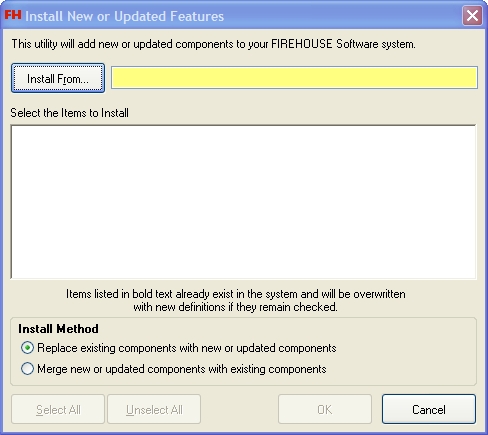
Choose Administration → Install New or Updated Components.
The Install New or Updated Features dialog box appears.
-
Click Install From.
The Select File dialog box appears.
-
Use the dialog box to find and open the
Ontario_User_fields.FHzfile you saved to your hard drive.It may take a few moments for the Install New or Updated Features dialog box to list the items that will install.
- Select the components you want to install.
-
Click OK.
A series of dialog boxes and status bars displaying the progress of the installation appear and then close automatically.
- Repeat steps 2-6 for
ON.FHzto install the new rules and lookup code set. - Repeat steps 2-6 for
Ontario_export.FHzto install the new rules and lookup code set. - Repeat steps 2-6 for
Ontario_SIR_2009_Report.FHzto install the SIR 2009 Report Form for printing hard copies of an incident report. - Continue with Collect data with the Ontario 2009 SIR recording method.