Download and install the rule remover
- In a web browser, go to http://www.firehousesoftware.com/documents/cms/docs/ Ontario_Rule_Removal.zip.
-
In the File Download dialog box that appears, click Save.
Warning: Do not change the file extension to .FHz as you did for the first four files you downloaded. This file is saved as a
.ZIPfile, not as a.FHzfile. - In the Save As dialog box that appears, navigate to the location on your hard drive where you want to save the file, and then click Save.
-
In the Download Complete dialog box, click Open.
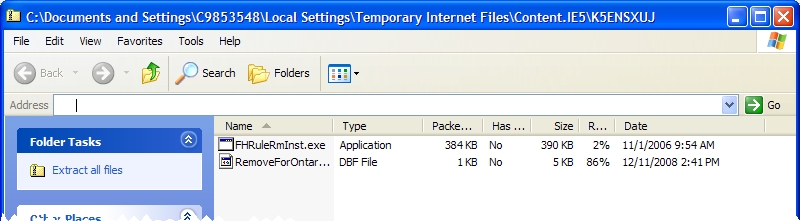
A Windows Explorer window displaying the contents of the zip file appears.
-
In the left pane, under Folder Tasks, click Extract all files.
The Extraction Wizard dialog box appears, displaying the Welcome screen.
-
Click Next >.
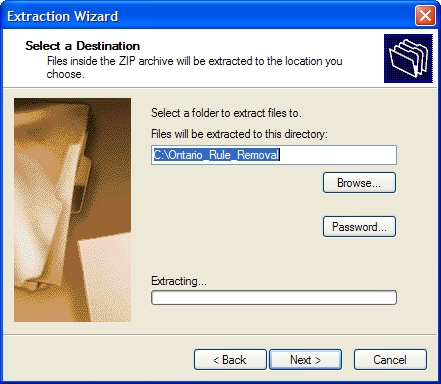
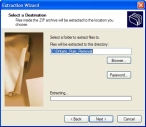
The Select a Destination screen appears in the wizard.
-
In Files will be extracted to this directory, type
c:\Ontario\Warning: FH depends on the file being saved in this location.
-
Click Next >.
The files are extracted.
-
Click Finish.
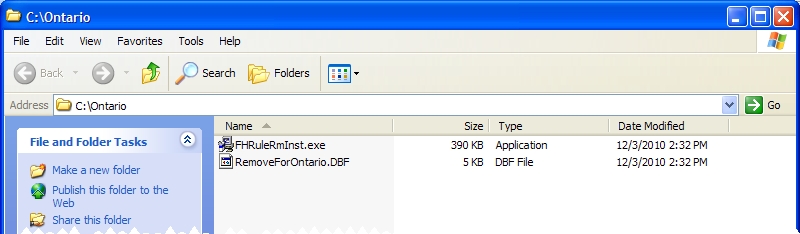
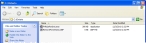
Another Windows Explorer window appears, displaying the C:\Ontario folder.
-
Double-click
FHRuleRmInst.exe.The Firehouse Rule Remover Utility installation wizard appears.
- Click Next >.
- Follow the prompts in the dialog box to install the FH Rule Removal Utility.
- Continue with Remove NFIRS incident reporting rules.