Draw menu
The Draw menu contains the functions that pertain to drawing a sketch.

| Icon | Lets you |
|---|---|
|
|
Assign an area definition to each area before or after (draw first mode) you have drawn it. You can choose the area type, level, and other attributes that affect its appearance and/or calculation. |
|
|
Draw your areas and define them as they are closed, rather than the traditional method of defining them first. |
|
|
Draw lines for illustration purposes, rather than for calculations. These lines are typically used for depicting interior walls, fence lines, etc. |
|
|
Add a curve while drawing. You may choose from pre-set curves, enter a custom curve, or use the curve solver to determine the degree of curvature. If you have a mouse wheel, you may also roll the mouse wheel to stretch the curve while drawing. |
|
|
Draw a single or multiple lines through an area and “split” it into two separate areas. |
|
|
Quickly add a rectangular shape to your sketch. Once placed, you are prompted to define it or place as free form lines. |
|
|
Quickly add a circular shape to your sketch. Once placed, you are prompted to define it or place as free form lines. |
|
|
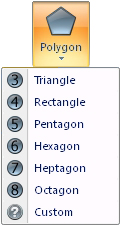
Choose between specific multiple-sided shapes, or enter the number of sides of the shape you wish to add to your sketch. Once placed, you are prompted to define it or place it as a set of free form lines. |
|
|
Draw the length of the stairs, then have the rest of the stairs automatically drawn for you. |
|
|
Display the Text Entry dialog box. You can type in a label of your own, or drag-and-drop labels from the list into your sketches. |
|
|
Place stacked text labels into your sketches, or to place several text labels in your sketches at the same time. You can then move the individual text labels to their appropriate location. |
|
|
Display the Symbol Selection dialog box. You can choose the appropriate symbol, and then drag-and-drop the symbols from the list into your sketches. You can also edit the symbol library, the properties of individual symbols, and choose the symbol color to match your preferences/requirements. |
|
|
Display the Fill Pattern dialog box. You can choose the appropriate fill pattern library, and then drag-and-drop the fill patterns from the list into any closed area in your sketch. You can also change the scale of scalable fill patterns, and you can change the color of fill patterns. |